How to use vMotes, our suite of virtual emojis, and the Mini Menu
Add an extra level of social connectivity to your vTime sessions with vMotes - our suite of virtual emojis. Available to use now for the whole vTime community.
How to use vMotes
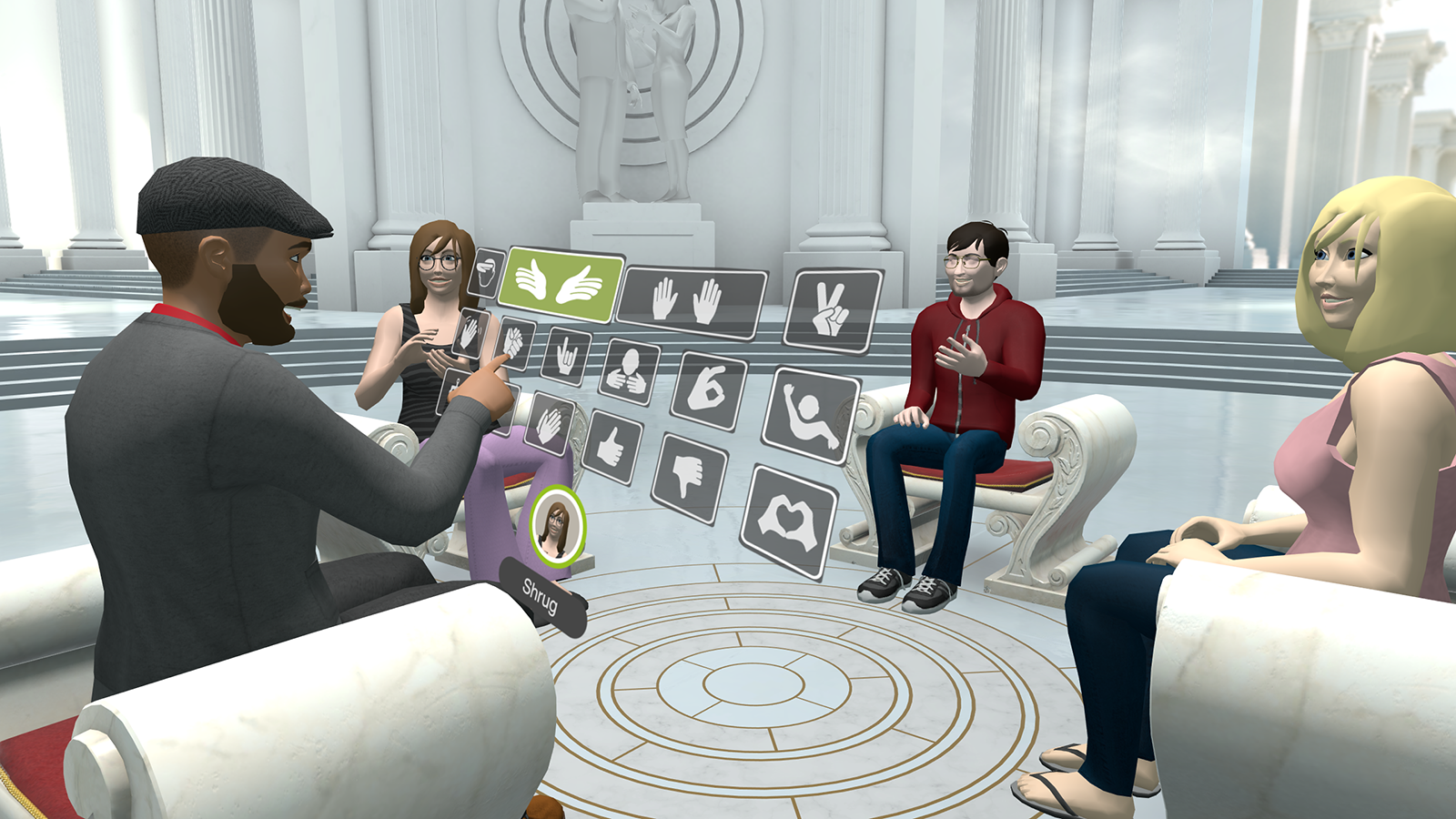
vMotes allow you to add extra emotion to your vTime chats through a menu of gestures. Choose from: Wave, OK, Thumbs Up, Shrug, Clap, Thumbs Down, Peace, Devil Horns, Salute, Hands Up, Celebrate, Hug, Blow Kiss, Love (heart hands), Happy Dance, Robot Dance.
Samsung Gear VR / Oculus Go
To use with the Gear VR / Oculus Go Controller
- Connect your Gear VR / Oculus Go Controller and start vTime
- Point anywhere, and hold down the center button on your Gear VR / Oculus Go Controller for 2 seconds.
- The vMote menu will appear with a list of vMotes that your avatar can use, such as wave and blow kiss.
To use with the Gear VR Touchpad
- Hold down the center of the touchpad.
- The vMote menu will appear with a list of vMotes that your avatar can use, such as wave and blow kiss.
Oculus Rift
To use vMotes in VR:
- To use vMotes, point anywhere and: hold down the left mouse button for two seconds / press the center button of the Rift controller / or hold the A button on the Xbox One Controller.
- The vMote menu will appear with a list of vMotes that your avatar can use, such as wave and blow kiss.
To use vMotes in Rift Magic Window mode:
- To use vMotes, point anywhere & hold down the right mouse button for two seconds.
- The vMote menu will appear with a list of vMotes that your avatar can use, such as wave and blow kiss.
Windows Mixed Reality
To use vMotes in VR:
- Points - Inside Trigger
- The Horns - Inside Trigger + Up on the Analogue Stick
- Peace - Inside Trigger + Left (Left Hand) / Right (Right Hand) on the Analogue Stick
- Fingers Crossed - Inside Trigger + Down on the Analogue Stick
- Fingers Crossed - Inside Trigger + Right (Left Hand) / Left (Right Hand) on the Analogue Stick
- Thumbs Up - Both Triggers
- Fist - Both Triggers + the select button.
- "Radical" - Top Trigger + Up on the Analogue Stick
- Heart (each hand has one half of the gesture) Top Trigger + Down on the Analogue Stick
- Flat Hand - Up on the Analogue Stick
- Spread fingers - Left (Left Hand) / Right (Right Hand) on the Analogue Stick
- Fingers Curled Back - Down on the Analogue Stick
- Spock - Right (Left Hand) / Left (Right Hand) on the Analogue Stick
Google Daydream
- To use vMotes, point the Daydream Controller anywhere, and hold down the button for 2 seconds.
- The vMote menu will appear with a list of vMotes that your avatar can use, such as wave and blow kiss.
iOS
To use vMotes in Cardboard mode
- Tap and hold anywhere to bring up the vMotes menu
- The vMote menu will appear with a list of vMotes that your avatar can use, such as wave and blow kiss.
To use vMotes in Magic Window Mode
- Double tap anywhere to bring up the vMotes menu
- The vMote menu will appear with a list of vMotes that your avatar can use, such as wave and blow kiss.
Google Cardboard
To use vMotes in Cardboard mode
- Tap and hold anywhere to bring up the vMotes menu
- The vMote menu will appear with a list of vMotes that your avatar can use, such as wave and blow kiss.
To use vMotes in Magic Window Mode
- Double tap anywhere to bring up the vMotes menu
- The vMote menu will appear with a list of vMotes that your avatar can use, such as wave and blow kiss.
How to use the Mini Menu
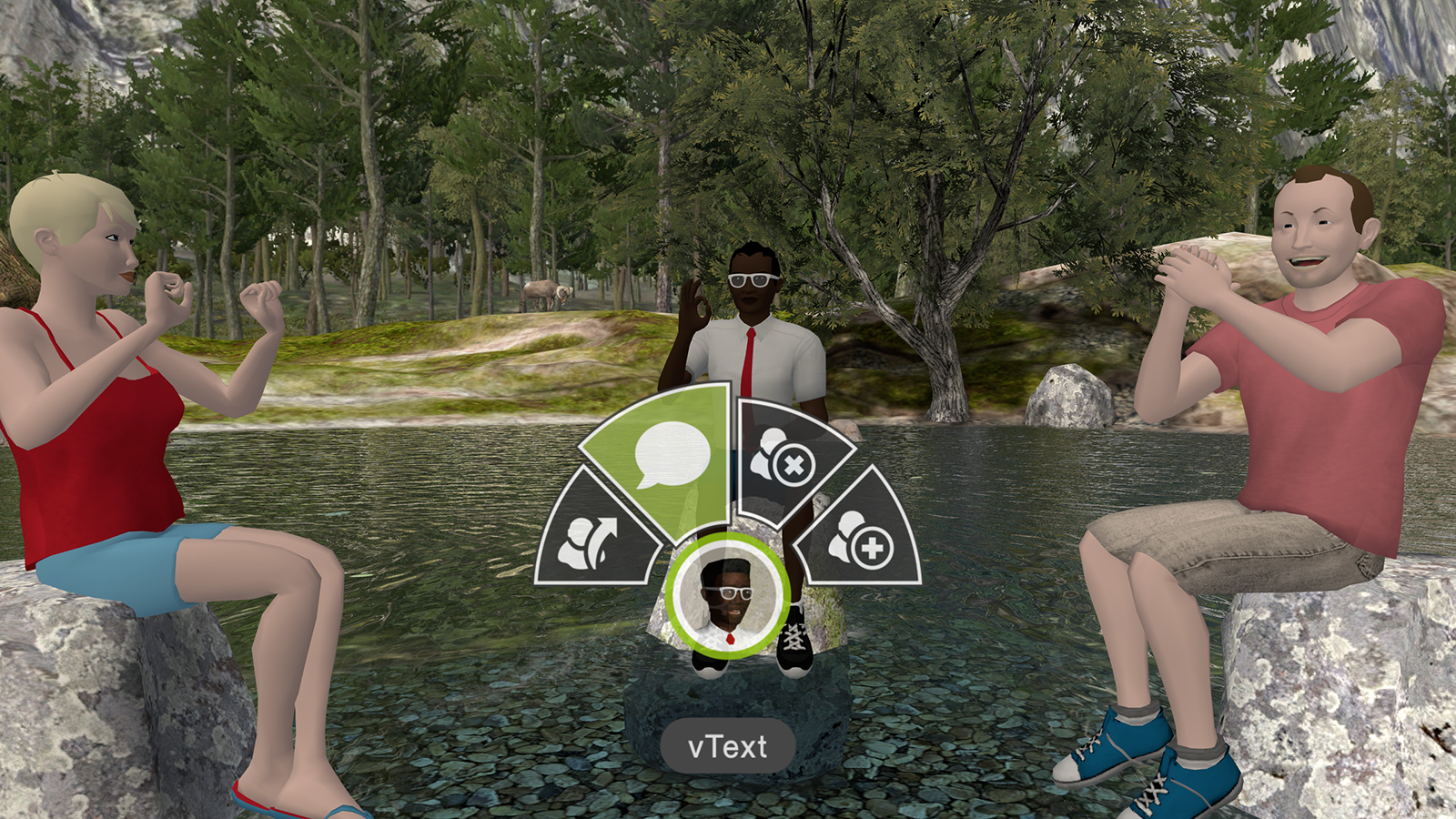
The new mini menu allows you to access the most-used social functions in session, without having to visit the Connections Screen. From here you can Friend, Make Host, Kick, Block or vText other users.
Samsung Gear VR / Oculus Go
How to use the Mini-Menu with the Gear VR Controller
- If you're in a session with another person, point the Gear VR Controller at them and press the center button.
- This will bring up the Mini-Menu.
How to use the Mini-Menu with the Gear VR Touchpad
- Press the center of the touchpad whilst looking at another user in the session.
- The Mini-Menu will appear.
Oculus Rift
To use the mini-menu in VR:
- To use the mini-menu, left click on another user in the session / press the center button of the Oculus Rift Remote whilst looking at another user / or press the A button whilst looking at another user in the session.
- The mini menu will appear.
To use the Mini-Menu in Rift Magic Window mode:
- To use the mini-menu, point at a user, or a seat you’d like to move to to activate the menu.
- The mini-menu will appear.
Google Daydream
- To use the mini-menu, point the Daydream Controller at a user, or a seat you’d like to move to and hold down the button for 2 seconds.
- The mini-menu will appear.
iOS
To use the mini-menu in Cardboard mode
- Tap and hold on a user, or a seat you’d like to move to to activate the menu.
- The mini-menu will appear.
To use the mini-menu in Magic Window Mode
- Double tap on a user, or a seat you’d like to move to to activate the menu.
- The mini-menu will appear.
Google Cardboard
To use the mini-menu in Cardboard mode
- Tap and hold on a user, or a seat you’d like to move to to activate the menu.
- The mini-menu will appear.
To use mini-menu in Magic Window Mode
- Double tap on a user, or a seat you’d like to move to to activate the menu.
- The mini-menu will appear.
How to point in vTime
Controller support also brings new options for pointing out areas of interest.
- Pressing the trigger will cause your avatar to begin pointing in the direction of the controller until released.
See you in vTime